macOS processes › Networking and wireless
What is airportd on Mac?
airportd is the macOS Wi-Fi daemon. It scans for networks, joins them, manages your known networks and keeps the connection running.
What it does
Everything Wi-Fi goes through airportd: finding networks, choosing which known network to join, moving between access points and measuring signal quality. The Wi-Fi menu in the menu bar is a separate process, listed as Wi-Fi in Activity Monitor, that talks to it. Location Services also uses Wi-Fi scans to work out where you are.
Why it gets busy
- A weak or unstable signal, which makes it scan and switch access points more often.
- A long list of known networks to compare against.
- Apps or Location Services asking for frequent Wi-Fi scans.
- Wi-Fi diagnostics or network-scanning apps.
Why is airportd using so much CPU?
airportd works harder when Wi-Fi is weak or unstable, or when apps keep asking for scans. Improve the connection and prune old known networks.
Is it safe to quit?
Quitting it drops your Wi-Fi connection until macOS restarts it.
How to calm it down
- Remove networks you no longer use. Click Advanced… in System Settings › Wi-Fi to see your known networks.
- Turn off Auto-Join for networks you don't want your Mac to pick.
- Move closer to the router, or use a wired connection for long transfers.
- Check which apps use your location in System Settings › Privacy & Security › Location Services.
In SystemWatch
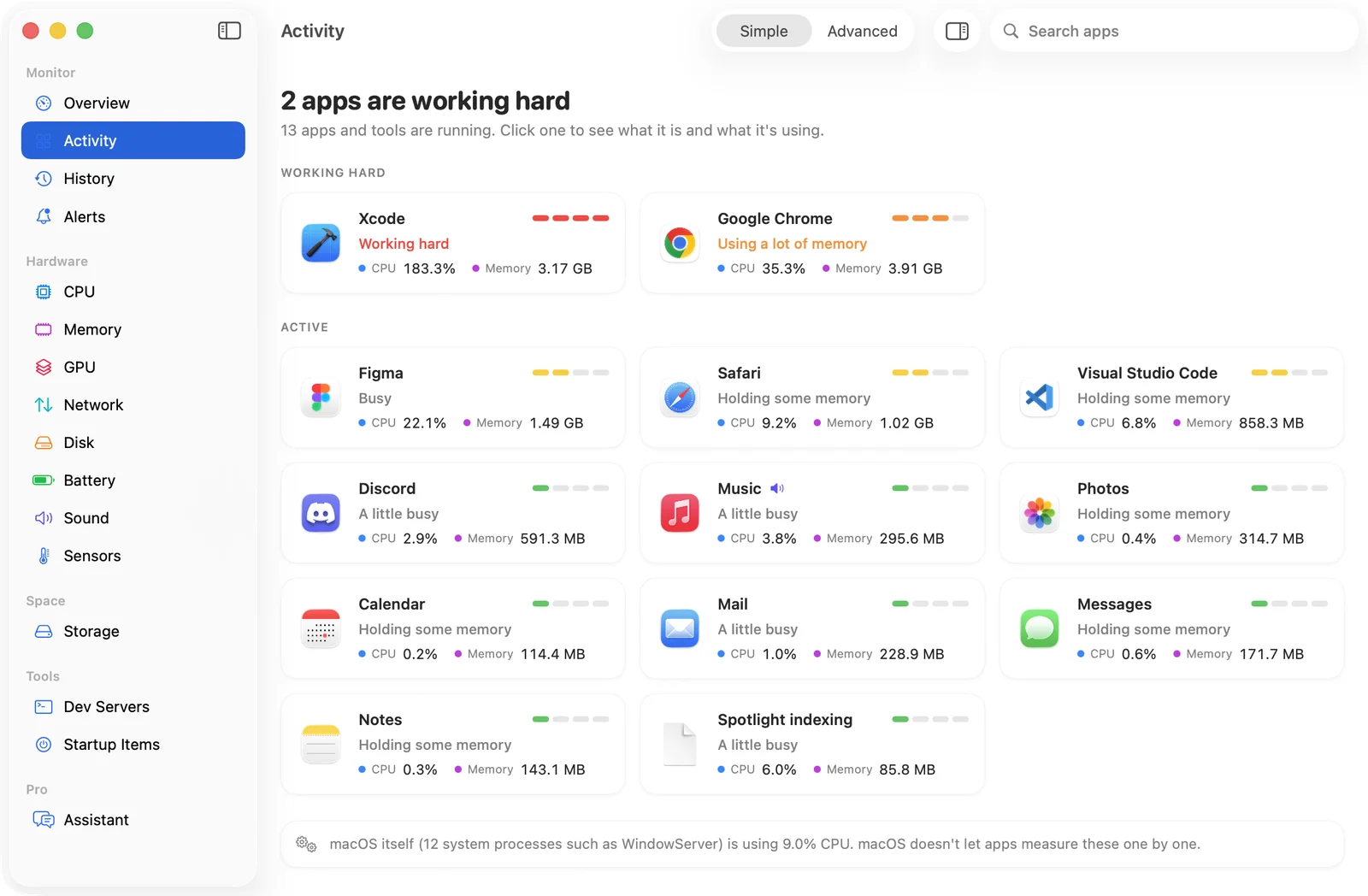
SystemWatch's History shows whether airportd's activity matches dropouts or moving between rooms, which separates a Wi-Fi problem from an app problem.