How to Check Your Mac's Temperature
macOS doesn't show temperatures anywhere, not in System Settings and not in Activity Monitor. To check your Mac's temperature, you need an app that reads its sensors, such as SystemWatch's website edition. As a rough guide, Apple silicon chips sit around 35–55 °C when idle and can climb to 80–105 °C under sustained heavy load, which is within what they're designed for.
Ways to check your Mac's temperature
Use a temperature monitor app
Every Mac has many temperature sensors: on the processor cores, the graphics, memory, storage, the battery and in the airflow path. Apple doesn't display them, but a monitor app can read them and show them as a list, a graph or a number in the menu bar. On current versions of macOS, this is the only way to see temperatures in degrees.
Check thermal pressure in Terminal
macOS tracks thermal pressure, which is how hard it's working to stay cool. Terminal can show the current level:
sudo powermetrics --samplers thermal -n 1Enter your administrator password when asked. "Nominal" means the Mac is fine. A higher level means macOS is working to shed heat and may be slowing things down. This shows the pressure level, not temperatures.
Watch for the signs
Without an app, you can still notice heat: fans spinning up, the case getting hot near the hinge or on the bottom, and the Mac slowing down during long jobs. Activity Monitor's CPU tab won't show heat, but it shows which app is causing the work.
What's a normal Mac temperature
These are typical readings, not Apple specifications. They vary by model, room temperature and which sensor you read. Short spikes are normal. What matters is where temperatures settle.
| Processor | Idle or light use | Sustained heavy load |
|---|---|---|
| Apple silicon (M1 to M5) | 35–55 °C | 80–105 °C |
| Intel | 40–60 °C | 85–100 °C |
A few details make these numbers easier to read:
- Apple silicon runs hot by design. The chips are built to work at high temperatures and slow themselves down before anything is at risk. A MacBook Air, with no fan, reaches the top of the range sooner and then reduces its speed.
- Intel Macs slow down near 100 °C. Most Intel processors in Macs start throttling as they approach that point.
- Graphics usually tracks the processor closely, because on Apple silicon they share one chip.
- The battery is the most heat-sensitive part. Apple recommends using Mac laptops where the room is between 10 and 35 °C (50 and 95 °F). Battery readings above about 45 °C are worth acting on, because heat wears batteries out faster.
- Storage that stays above about 70 °C during long copies is running hot.
Which reading to watch
A monitor app can show dozens of numbers. Three are enough for most people:
- The hottest processor core. It's the first to rise under load and the one macOS reacts to. Brief jumps of 10 or 20 degrees when you open an app are normal.
- The trend over several minutes. A temperature that climbs and settles is fine. One that keeps rising while you do the same work points to blocked airflow or a fan problem.
- The battery. It warms more slowly than the processor, so a hot battery means heat has built up for a while.
What thermal pressure means
Temperature is a reading. Thermal pressure is what macOS does about it. Apps see four levels:
- Nominal. Normal. Nothing to do.
- Fair. The Mac is warm, and fans may speed up.
- Serious. macOS is reducing performance to cool down. Exports and builds take longer.
- Critical. macOS is cutting performance hard. If temperatures keep rising, the Mac can shut down to protect itself.
A high temperature with nominal pressure is fine. Serious or critical pressure for long stretches during light use is worth looking into: see MacBook overheating.
Why temperatures go up
- Sustained work: video exports, code builds, games, many browser tabs.
- A background process stuck at high CPU. After a macOS update, Spotlight (mds_stores, corespotlightd) and Photos (photoanalysisd) can run for hours.
- External displays, which add graphics work for WindowServer.
- Blocked airflow: a MacBook on a bed, a sofa or a blanket.
- A warm room or direct sun.
- Dust in the vents of older Macs with fans.
If temperatures stay high and the Mac is slow, the cause is usually one of these, not the hardware. Why is my Mac slow walks through how to find it.
How to bring temperatures down
- Find what's using the processor in Activity Monitor and quit it if you don't need it.
- Close browser tabs you aren't using, especially video and web apps.
- Put the Mac on a hard, flat surface with the vents clear.
- Let indexing finish after an update, with the Mac plugged in.
- For long, heavy jobs on a Mac with fans, raise fan speed earlier with fan control.
Monitor temperatures with SystemWatch
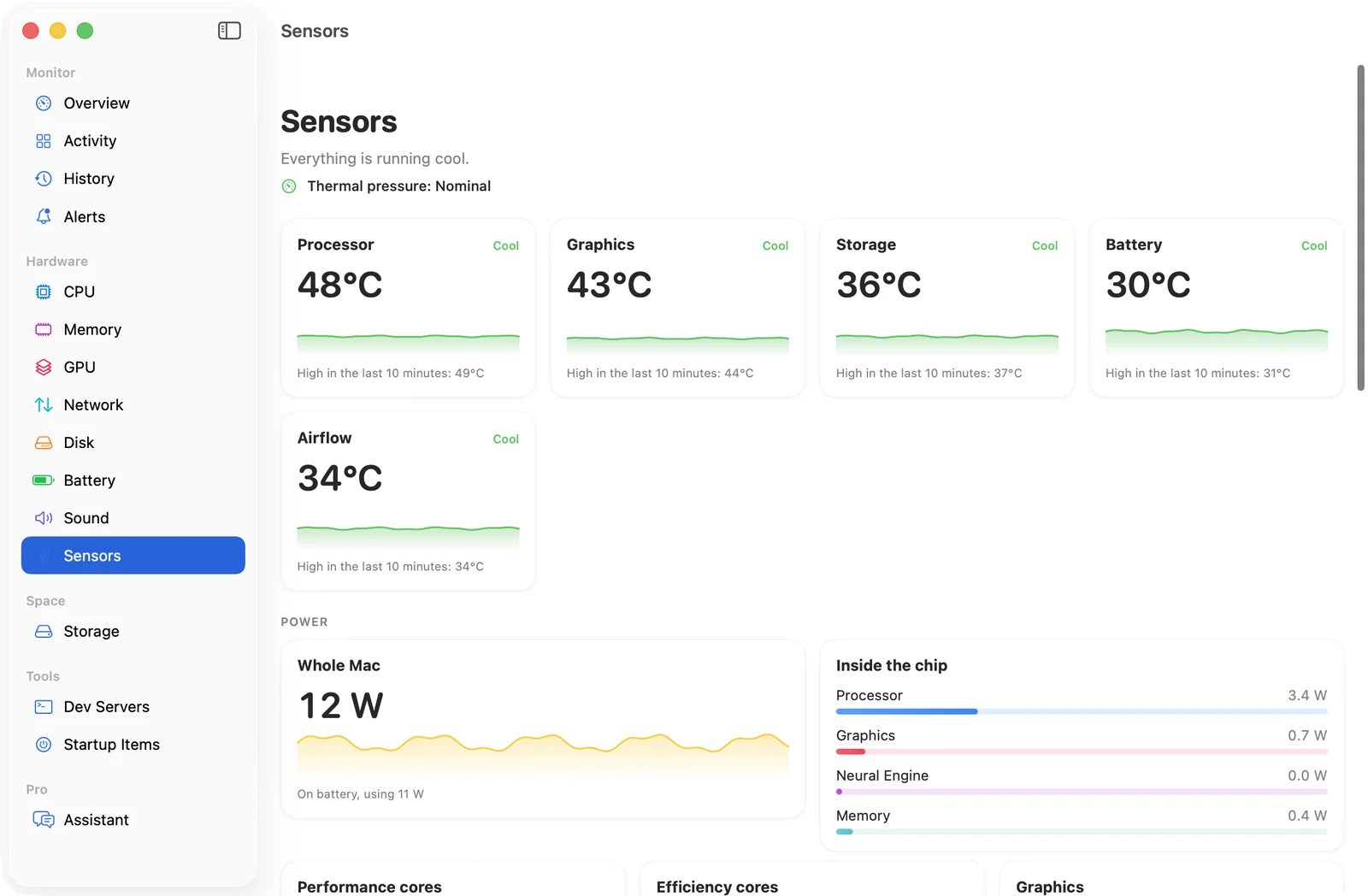
SystemWatch's website edition has a Sensors view that reads every temperature sensor on your Mac.
- Every sensor, grouped. Readings are sorted into performance cores, efficiency cores, graphics, memory, storage, battery and airflow, with readable names instead of sensor codes.
- 10-minute graphs. See how temperatures moved over the last 10 minutes, with the high for each sensor.
- Power and frequencies. Processor and graphics power in watts, and how fast the performance and efficiency cores are running.
- Thermal pressure, shown next to the temperatures, so you can see when macOS starts throttling.
- Menu bar readouts. Keep a temperature in the menu bar.
- Overheating alerts. A notification when the Mac has been throttling or very hot for a minute.
- Fans. Each fan's speed, and your own fan curves if you want them.
The App Store edition can't read temperatures or fans, because App Store rules don't allow it. Temperatures are in the website edition: a one-time $5.99 lifetime license (launch price for the first 100 copies, then $14.99) for up to 3 Macs, on macOS 15 or later, for Apple silicon and Intel. Sensor readings stay on your Mac.