How to Stop Apps From Opening at Startup on Mac
To stop an app from opening when you log in to your Mac, choose Apple menu › System Settings › General › Login Items & Extensions, select the app under Open at Login and click the remove button (−). Some apps also have their own "open at login" setting, and some run background helpers, listed under Allow in the Background, that you can switch off in the same place.
Remove apps from Open at Login
- Choose Apple menu › System Settings.
- Click General in the sidebar, then Login Items & Extensions.
- Under Open at Login, select the app.
- Click the remove button (−).
The app still works; it just won't open by itself. To add it back later, click the add button (+) and choose it.
Turn off background items
Below Open at Login is Allow in the Background. These are helpers that run without a window: updaters, sync tools, menu bar helpers and support tools for devices like mice and keyboards. Each has its own switch.
- Turn a switch off to stop that helper from running in the background.
- macOS may ask for your password.
- Some items are listed under the developer's name rather than the app's.
Some apps lose features without their helper. A backup app may stop backing up, or a cloud storage app may stop syncing. If something stops working after you switch an item off, switch it back on.
Check the app's own setting
Many apps add themselves at login from their own settings, and some add themselves back if you only remove them in System Settings. Open the app, choose its Settings with ⌘, (Command-Comma), and look for an option like "Open at login" or "Launch at startup". Turn it off.
For an app in the Dock, you can also Control-click (or right-click) its icon and choose Options. If Open at Login has a checkmark, choose it to turn it off.
Stop windows reopening after a restart
If the apps you had open come back after a restart, that's a different feature. When you choose Apple menu › Restart or Shut Down, turn off "Reopen windows when logging back in" in the dialog before you confirm.
How launch agents and daemons work
Behind the scenes, macOS starts background programs with launchd, the first process that runs at startup. Many apps tell launchd what to start by placing a small settings file, a .plist, in one of these folders:
| Folder | What's in it | When it runs |
|---|---|---|
| ~/Library/LaunchAgents | Agents for your user account only | After you log in |
| /Library/LaunchAgents | Agents for every user on the Mac | After each user logs in |
| /Library/LaunchDaemons | Daemons for the whole system | From startup, before anyone logs in |
| /System/Library/LaunchAgents and LaunchDaemons | Apple's own | Leave these alone |
Agents run in your session and can show things on screen, such as a menu bar helper. Daemons run for the whole system, often with administrator rights, and have no window. Updaters and helpers for drivers are often daemons.
Newer apps can also keep their helpers inside the app itself and register them with macOS. Those show up under Allow in the Background but not in these folders.
Leftovers from deleted apps
When you drag an app to the Trash, its launch agents and daemons often stay behind. launchd may keep trying to start a program that's no longer there, or an updater keeps running for an app you don't have anymore. It's usually harmless, but it's clutter, and now and then a leftover keeps doing work in the background.
To remove one by hand:
- In Finder, choose Go › Go to Folder, or press ⇧⌘G (Shift-Command-G), and open each folder from the table above.
- Look for a .plist named after the app or its developer, such as com.example.updater.plist.
- Move it to the Trash. Files in /Library ask for your administrator password.
- Restart the Mac.
If you aren't sure which app a file belongs to, select it in Finder and press Space to preview it with Quick Look. The Program or ProgramArguments entry shows the path of the program it starts. If that path points to an app you deleted, the file is a leftover. If you still can't tell, leave it. Removing a daemon that another app still needs can break that app.
How much login items slow a Mac
A few login items make little difference. Many of them, especially cloud sync, chat apps and updaters, slow down the first minutes after you log in and use memory all day. Keep the ones you use every day and remove the rest. For other causes of a slow Mac, see why your Mac is slow.
Manage startup items with SystemWatch
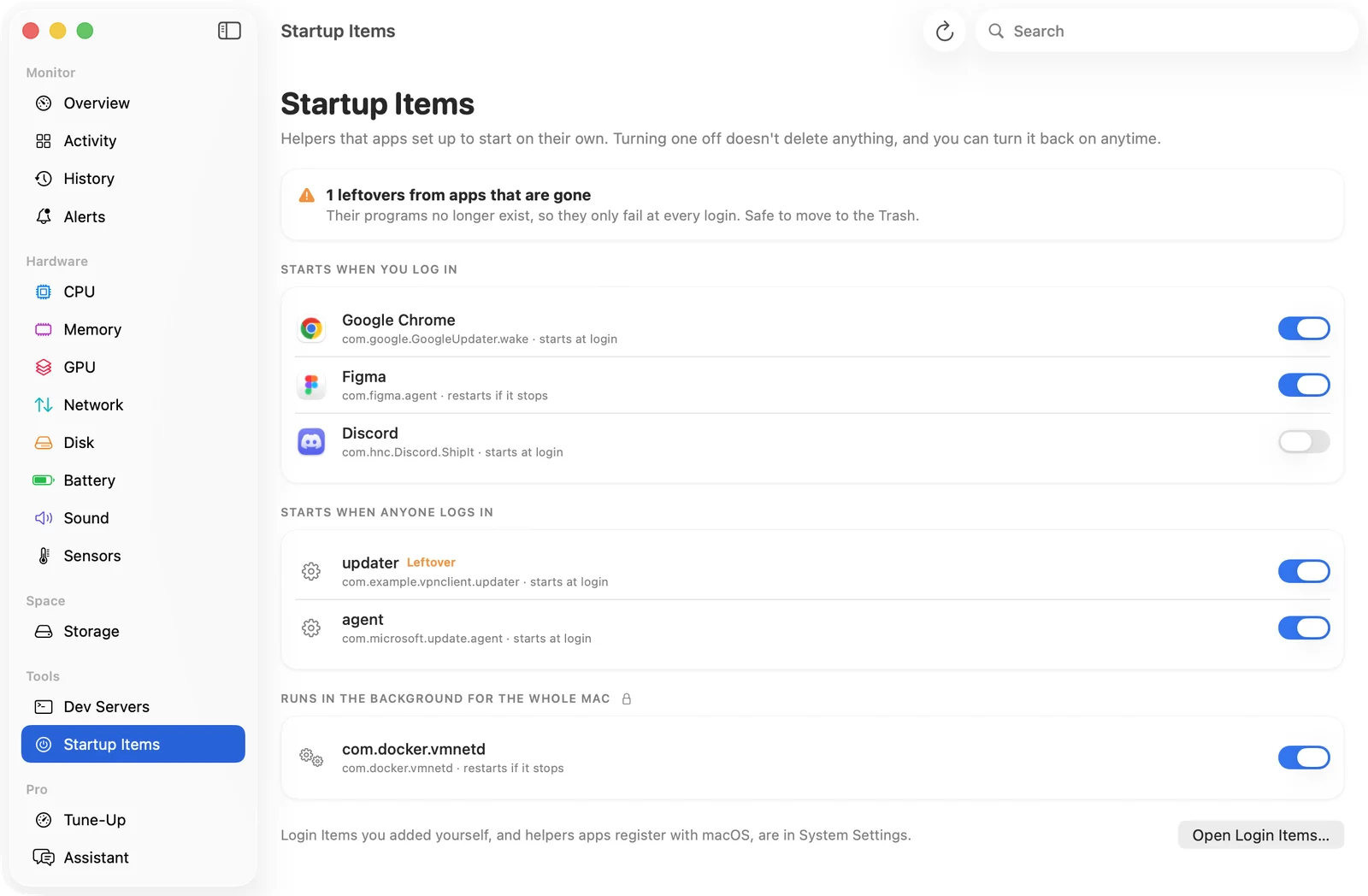
SystemWatch's website edition has a Startup Items view that lists every launch agent and daemon in the three Library folders above, in one list.
- Which app it belongs to. Each item shows the app it comes from, worked out from the program it runs.
- Leftovers flagged. Items whose program is no longer on the Mac, usually because the app was deleted, are marked so you can spot them.
- Switch off without deleting. Turning an item off stops it now and keeps it off after a restart. The file stays where it is, so you can turn it back on with one click. System-wide items ask for your administrator password.
To remove a deleted app's other leftovers, such as caches and support files, use the Storage scan or the app uninstaller described on the Mac cleaner page.
Startup Items is in the website edition, a one-time $5.99 lifetime license (launch price for the first 100 copies, then $14.99) for up to 3 Macs, on macOS 15 or later. The App Store edition can't manage other apps' startup items because of App Store rules.