How to Force Quit an App on Mac
To force quit an app on a Mac, press ⌥⌘⎋ (Option-Command-Escape), select the app and click Force Quit. You can also choose Apple menu › Force Quit, Option-click the app in the Dock, or use Activity Monitor. If the whole Mac is frozen and nothing responds, press and hold the power button for about 10 seconds until it turns off.
Before you force quit
Force quitting closes an app immediately, without giving it a chance to save. Try the gentle options first:
- Wait 30 seconds. An app showing the spinning wait cursor is often busy, not stuck, especially while it opens a large file or wakes from sleep.
- Press ⌘Q (Command-Q), or choose Quit from the app's menu.
- If other apps still respond, save your work in them.
If the app still won't close, use one of the methods below. They go from quickest to most thorough.
1. The Force Quit window
This is the Mac equivalent of Ctrl-Alt-Delete on Windows.
- Press ⌥⌘⎋.
- Select the app. An app that has stopped responding is usually marked "Not Responding".
- Click Force Quit, then confirm.
If you select Finder, the button says Relaunch instead, because Finder always starts again.
2. The Apple menu
Click the Apple menu in the top-left corner of the screen and choose Force Quit. It opens the same window. Use this when the keyboard isn't responding but the pointer still moves.
3. The Dock
- Control-click (or right-click) the app's icon in the Dock.
- Hold down ⌥ (Option). Quit in the menu changes to Force Quit.
- Click Force Quit.
4. Activity Monitor
Use Activity Monitor, the Mac's task manager, for background processes that have no window and don't appear in the Force Quit window, such as a helper that keeps using the processor.
- Open Activity Monitor: press ⌘Space (Command-Space), type "Activity Monitor" and press Return.
- Find the process. Sort by % CPU, or type its name in the search field.
- Select it and click the Stop button (an X) in the toolbar.
- Click Quit to ask it to close, or Force Quit to end it immediately.
Leave system processes alone unless you know what they do. Force quitting WindowServer logs you out and closes every app. kernel_task is the core of macOS and can't be quit. Processes like mds_stores start again a moment later, because macOS needs them.
5. Terminal: kill and killall
Terminal gives you the same control with text commands. Use it with care: there's no confirmation step.
Find the process ID (PID) and name:
pgrep -il safariAsk the process to quit, the way Quit does:
kill 12345End it immediately, the way Force Quit does:
kill -9 12345Or end every process with a given name:
killall "Google Chrome"A few things to know:
killwithout-9sends a polite request, so the app can clean up first. Use-9only when that doesn't work.killallmatches the process name, which can differ from the app's name. Check it withpgrep -ilfirst.- Avoid
sudounless the process belongs to another user or to the system. Withsudo, you can stop parts of macOS by mistake. killall Dockandkillall Finderare safe ways to restart the Dock or Finder when they misbehave. Both come back on their own.
When force quit doesn't work
Sometimes an app ignores Force Quit, or comes back stuck. Work through these steps:
- Try Activity Monitor or
kill -9. They reach processes the Force Quit window doesn't show, including an app's helper processes. - Wait a minute. A process waiting on a drive or server that disappeared, such as an unplugged external disk or a dropped network share, may not exit until that request times out.
- Log out. Choose Apple menu › Log Out, or press ⇧⌘Q (Shift-Command-Q). Logging out closes all your apps.
- Restart. Choose Apple menu › Restart. If an app blocks the restart, macOS tells you which one.
- Force a shutdown. If the restart hangs, press and hold the power button for about 10 seconds until the Mac turns off. On many MacBooks, it's the Touch ID button. Wait a few seconds, then press it again to start up.
When the whole Mac is frozen
If the pointer won't move and no keys work, the Mac itself is stuck, not one app. Give it a minute first; it may recover. Then press and hold the power button for about 10 seconds until the screen goes black. Wait a few seconds and press the power button again.
This doesn't harm the Mac's hardware or macOS, but it has the same effect as force quitting every app at once. Use it only when nothing else responds.
If the Mac restarted by itself and shows a message that it restarted because of a problem, macOS hit a serious error. Once is not a worry. If it keeps happening, install software updates, think about which apps or drivers you installed recently, and see why your Mac is slow for other things to check.
What you lose when you force quit
- Unsaved changes. Anything you typed since the last save in that app is gone. Many Mac apps, including Pages, Numbers, Keynote and TextEdit, save automatically as you work, so you often lose only the last few seconds.
- Open windows and tabs. Most apps reopen their windows next time. In Safari, choose History › Reopen All Windows from Last Session if they don't come back.
- Nothing else. Force quitting doesn't delete the app, its settings or your files. The only real risk is a file the app was writing at that exact moment, which may be left incomplete.
When to restart instead
Force quitting fixes one stuck app. Restart the Mac when:
- Several apps freeze within a short time.
- The same app freezes again right after you reopen it.
- The Mac has been running for weeks and feels slow overall.
- You just installed a macOS update and things feel off.
If one app keeps freezing, update it and check that the Mac isn't short on disk space or memory. A nearly full disk or red memory pressure in Activity Monitor makes apps hang. Clearing that app's cache sometimes helps too: see how to clear cache on Mac. If the Mac is also hot, read MacBook overheating.
Force quit with SystemWatch
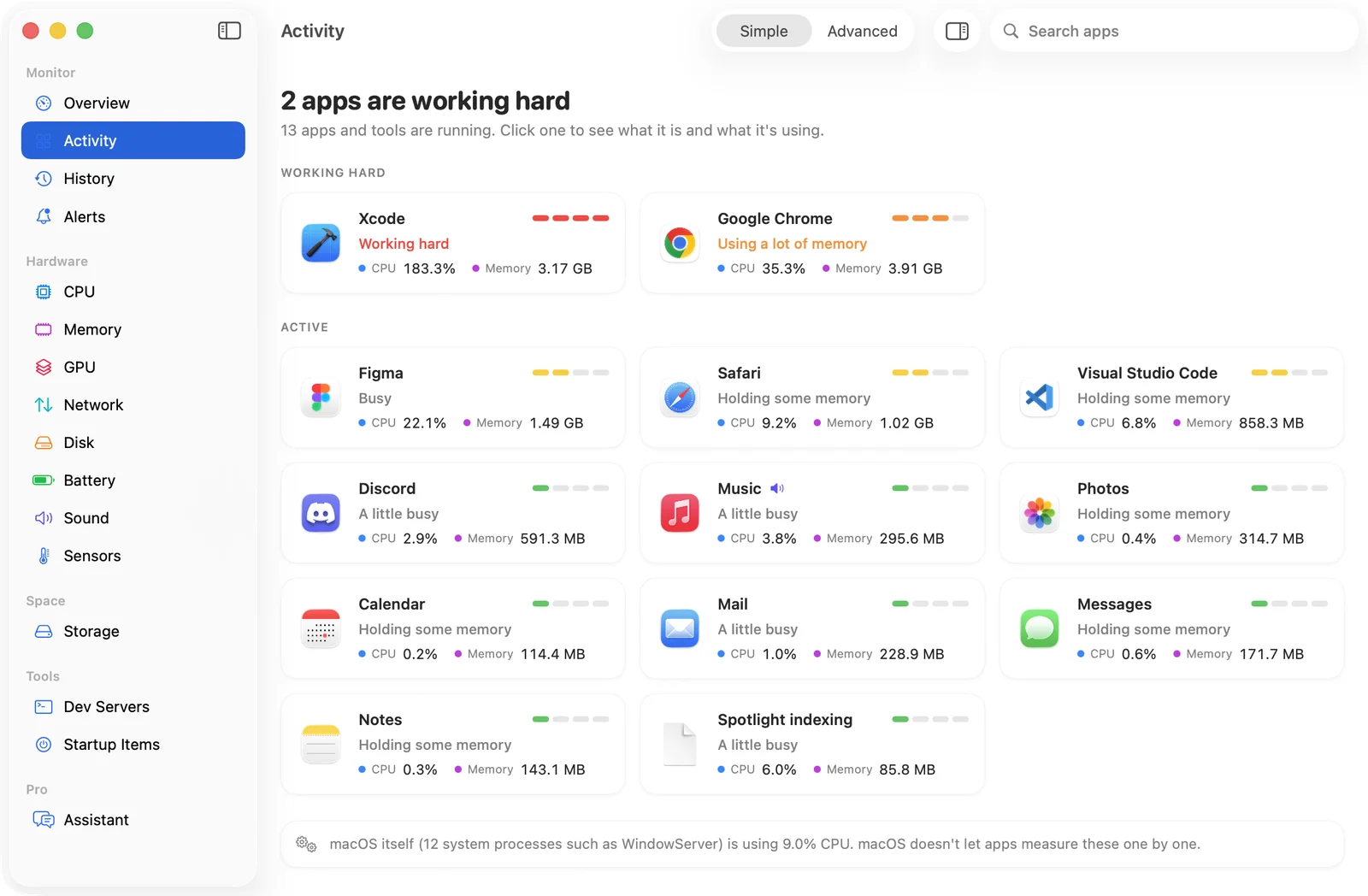
SystemWatch shows you which app is stuck before you reach for ⌥⌘⎋. The Activity view explains each process in plain language, so you can tell a stuck app from a busy system task, and an alert tells you when an app has been working hard for minutes.
The App Store edition can't quit other apps because of App Store rules. It points you to the app, and you quit it with ⌘Q. The website edition adds one-click Quit and Force Quit. It also adds Pause, which stops an app from using the processor without quitting it, so nothing unsaved is lost. Resume it when you're ready to save your work.