Ctrl-Alt-Delete on Mac: What to Press Instead
The Mac equivalent of Ctrl-Alt-Delete is ⌥⌘⎋ (Option-Command-Escape). It opens the Force Quit Applications window, where you select a frozen app and click Force Quit. For the full Task Manager view, with every process and the CPU and memory it uses, open Activity Monitor: press ⌘Space (Command-Space), type "Activity Monitor" and press Return.
What Control-Alt-Delete does on Windows, and on a Mac
On Windows, Ctrl-Alt-Delete opens one screen with Lock, Switch user, Sign out, Change a password and Task Manager, plus power options in the corner. A Mac has no such screen. Each of those jobs has its own shortcut or menu item instead, and most of them are in the Apple menu in the top-left corner of the screen.
The keys have different names, too. The Mac's Option key does the job of Alt, and some Mac keyboards label it "alt" as well. The Command key handles most of what Ctrl does on Windows. If you use a Windows keyboard with a Mac, Alt works as Option and the Windows key works as Command, so the Force Quit shortcut becomes Alt-Windows-Esc.
Force quit an app with Option-Command-Escape
This is what most people want when they reach for Ctrl-Alt-Del: a way out of an app that has stopped responding.
- Press ⌥⌘⎋.
- Select the app. One that has stopped responding is marked "not responding".
- Click Force Quit, then confirm.
The same window is in the Apple menu › Force Quit, which helps when the keyboard isn't responding but the pointer still moves. If you select Finder, the button says Relaunch instead, because Finder always starts again.
Force quitting closes the app without saving. If the app is only slow, press ⌘Q (Command-Q) first and give it 30 seconds. Our force quit guide also covers the Dock, Activity Monitor and Terminal methods.
Force quit the app in front, with no window
Press and hold ⌥⇧⌘⎋ (Option-Shift-Command-Escape) for about three seconds. macOS force quits the frontmost app straight away, with no list and no confirmation. Use it only when you're sure which app is in front, because anything unsaved in it is lost.
The same command is in the Apple menu. Open the menu and hold ⇧ (Shift): Force Quit changes to Force Quit followed by the name of the app in front.
Task Manager on a Mac: Activity Monitor
Windows' Task Manager, which you can also open with Ctrl-Shift-Esc, maps to Activity Monitor. It comes with every Mac and lives in Applications › Utilities. It has no keyboard shortcut of its own, so Spotlight is the quickest way in: press ⌘Space, type "activity" and press Return.
Activity Monitor lists every process, including background programs that have no window and never appear in the Force Quit window. Click the % CPU or Memory column heading to put the busiest process at the top. To end one, select it, click the Stop button (an X) in the toolbar and choose Quit or Force Quit.
Leave processes you don't recognize alone until you know what they are. Quitting WindowServer logs you out, and kernel_task can't be quit at all. Our Activity Monitor guide explains each tab and column.
Lock, log out, switch user and restart
Lock the screen
Press ⌃⌘Q (Control-Command-Q), or choose Apple menu › Lock Screen. Your apps keep running, and you need your password, or Touch ID if your Mac has it, to get back in. It's the Mac version of Windows-L.
Log out
Press ⇧⌘Q (Shift-Command-Q), or choose Apple menu › Log Out. macOS asks you to confirm, then quits your apps, and apps with unsaved work ask you to save it. Press ⌥⇧⌘Q (Option-Shift-Command-Q) to log out without the confirmation. If an app hangs during logout, macOS names it and offers to force quit it so the logout can continue.
Switch user
Windows' Switch user maps to Fast User Switching. Turn it on in System Settings › Menu Bar (System Settings › Control Center on macOS 15) by choosing to show Fast User Switching in the menu bar or in Control Center. Then click it and pick another account. Your apps stay open in the background while someone else uses the Mac.
Change your password
Choose System Settings › Touch ID & Password, or Login Password on a Mac without Touch ID, and click Change next to Password.
Restart or shut down
Choose Apple menu › Restart or Apple menu › Shut Down. If an app refuses to quit, macOS tells you which one and offers to force quit it.
Windows vs Mac at a glance
| On Windows | On a Mac |
|---|---|
| Ctrl-Alt-Delete › Task Manager, or Ctrl-Shift-Esc | Activity Monitor (⌘Space, then type its name) |
| End task in Task Manager | ⌥⌘⎋, then Force Quit |
| Lock, or Windows-L | ⌃⌘Q, or Apple menu › Lock Screen |
| Sign out | ⇧⌘Q, or Apple menu › Log Out |
| Switch user | Fast User Switching in the menu bar or Control Center |
| Change a password | System Settings › Touch ID & Password › Change |
| Power › Restart or Shut down | Apple menu › Restart or Shut Down |
| Hold the power button | Hold the power button for about 10 seconds |
When the keyboard does nothing
If ⌥⌘⎋ doesn't bring up the Force Quit window, work out how much of the Mac is stuck.
- The pointer still moves. Click the Apple menu and choose Force Quit. If the menu won't open either, the problem is bigger than one app.
- Only the keyboard is dead. A wireless keyboard may have a flat battery or may have lost its Bluetooth connection. Use the Apple menu with the trackpad or mouse instead, or try the MacBook's built-in keyboard.
- Nothing responds. Give the Mac a minute, because it may recover. Then press and hold the power button for about 10 seconds until the screen goes black. On a MacBook with Touch ID, the Touch ID button is the power button. Wait a few seconds, then press it again to start up.
A forced shutdown loses unsaved work in every open app, but it doesn't harm macOS or the hardware. If freezes keep happening, see why your Mac is slow and how to stop the spinning wheel.
Ctrl-Alt-Delete for Windows running on a Mac
If you use Windows on a Mac in a virtual machine or a remote desktop app, ⌥⌘⎋ goes to macOS, not to Windows. Those apps have their own way to send Ctrl-Alt-Delete to Windows, usually a menu command or a special key combination. Look in the app's menus or its help for "Ctrl-Alt-Del".
A Mac task manager closer to what you're used to
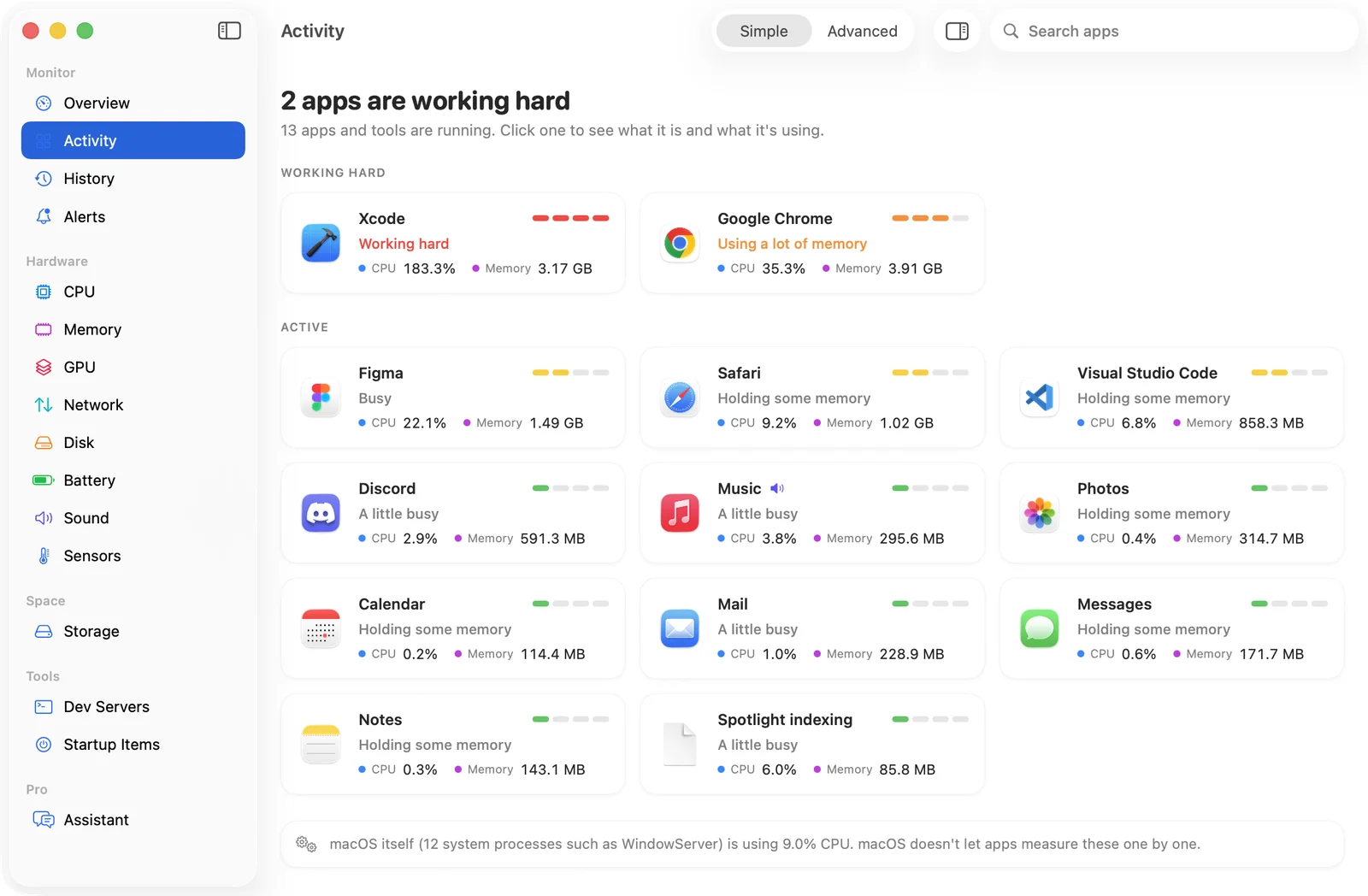
Activity Monitor shows the numbers, but not what a process like mds_stores is or whether it's safe to quit. SystemWatch is a native Mac task manager that explains every app and process in plain language and sends an alert when an app keeps working hard for minutes.
The website edition adds one-click Quit, Force Quit, Pause and priority controls, plus Efficiency Mode. Like Efficiency mode in the Windows 11 Task Manager, it keeps background apps from slowing down the one you're using: while the Mac is busy, apps you aren't using that keep working hard move to the efficiency cores on Apple silicon, and get their speed back when you switch to them. It's a one-time $5.99 license for the first 100 copies, then $14.99. The App Store edition can't quit other apps because of App Store rules, so it shows you the app and you quit it yourself.