How to Stop the Spinning Wheel on Mac
The spinning wheel on a Mac, which Apple calls the spinning wait cursor, means one app is too busy to respond to you. To stop it, wait up to a minute, then force quit the app with ⌥⌘⎋ (Option-Command-Escape) if it's still spinning. If the wheel keeps coming back in every app, the cause is the Mac as a whole, usually low memory, a nearly full disk, Spotlight indexing or a slow or failing drive.
What the spinning wheel means
Every Mac app has a main thread that handles your clicks and typing and draws its windows. When that thread stays busy for more than a few seconds, because the app is opening a huge file, waiting for a network drive or caught in a bug, macOS shows the spinning rainbow wheel over that app's windows until the app catches up.
Two things are worth knowing:
- It belongs to one app. Move the pointer over another app's window or the Dock. If the pointer turns back into an arrow there, only the first app is stuck, and you can keep working in the others.
- Busy isn't the same as frozen. An app that spins for ten seconds while it saves a large file is fine. One that spins for minutes, or every few seconds, has a problem. The Force Quit window and Activity Monitor label a frozen app "not responding".
How to stop the spinning wheel, step by step
Work through these in order. Most spins end at step 1 or 2.
1. Wait a minute
Apps that open large files, wake from sleep or wait for a server can take 30 to 60 seconds. Switch to another app in the meantime. Clicking the stuck app over and over doesn't help: your clicks wait in line and may all land at once when it recovers.
2. Quit or force quit the app
Press ⌘Q (Command-Q) first. If nothing happens, press ⌥⌘⎋, select the app and click Force Quit. You can also Control-click its Dock icon, hold ⌥ (Option) and choose Force Quit. Unsaved changes in that app are lost. Our force quit guide covers every method, including Terminal.
3. Check Activity Monitor
If the same app spins again after you reopen it, or several apps spin, open Activity Monitor: press ⌘Space (Command-Space), type "Activity Monitor" and press Return.
- CPU tab. Click % CPU to sort. A process that stays near the top for minutes while you aren't using it slows everything else down.
- Memory tab. Look at the Memory Pressure graph. Yellow or red, with Swap Used growing, means the Mac is moving memory to disk, and every app gets slow. How to check memory usage explains the numbers.
- Disk tab. Sort by Bytes Read. Heavy reading by one process can hold up apps that need the disk.
Activity Monitor can also count hangs. Double-click an app to open its inspector window, which shows Recent hangs, counted since Activity Monitor opened. Leave Activity Monitor open for a while, and the app that keeps hanging shows itself. The Activity Monitor guide covers the rest of the window.
4. Free up disk space
Choose System Settings › General › Storage. macOS needs free space for swap files, caches and updates, and apps stall while they wait to write to a nearly full disk. As a rule of thumb, keep at least 10% of the disk or 20 GB free, whichever is more. How to clear System Data shows what's safe to remove.
5. Restart the Mac
Choose Apple menu › Restart. A restart clears swap and restarts background processes that got stuck. If the Mac hasn't restarted in weeks, this alone often ends the spinning.
6. Update the app and macOS
Check System Settings › General › Software Update, and update the app that spins. Hangs are often bugs that a newer version fixes.
When the wheel spins in every app
If the spinning wheel shows up everywhere, look for something all apps share.
- WindowServer is overloaded. WindowServer draws everything on screen. Several displays, many open windows and transparency effects keep it busy. If it sits near the top of the CPU tab, close windows you don't need and turn on Reduce transparency in System Settings › Accessibility › Display.
- Memory is short. Red memory pressure makes every app wait while macOS swaps data to and from the disk. Quit apps and close browser tabs you aren't using.
- The startup disk is nearly full. See step 4.
- Spotlight is indexing. After a macOS update, a migration or connecting a large drive, mds_stores and mdworker_shared can read the disk for hours. Photos analysis (photoanalysisd) and iCloud syncing (cloudd) do the same. Leave the Mac plugged in and let them finish.
- A drive is slow or failing. An external hard disk spinning up, a network share that dropped or a failing drive makes apps wait, often in Finder and in Open and Save dialogs. Run First Aid in Disk Utility. In System Information, under Storage, S.M.A.R.T. Status should say Verified. If it says Failing, back up now.
- The Mac is hot. When it overheats, macOS slows the processor, and kernel_task climbs as it holds back other work. See MacBook overheating.
Console, in Applications › Utilities, keeps a record too. Under Reports, check Spin Reports and Crash Reports. A name that appears again and again is your likely cause.
Try Safe Mode
If the spinning continues after a restart, start up in Safe Mode. It loads only what macOS needs and skips your login items and third-party extensions.
- Apple silicon: shut down, then press and hold the power button until "Loading startup options" appears. Select your startup disk, hold ⇧ (Shift) and click Continue in Safe Mode.
- Intel: turn on or restart the Mac and immediately hold ⇧ until you see the login window.
If the Mac runs smoothly in Safe Mode, something that starts at login is likely to blame: see how to stop apps opening at startup. Restart normally to leave Safe Mode.
Find the cause with SystemWatch
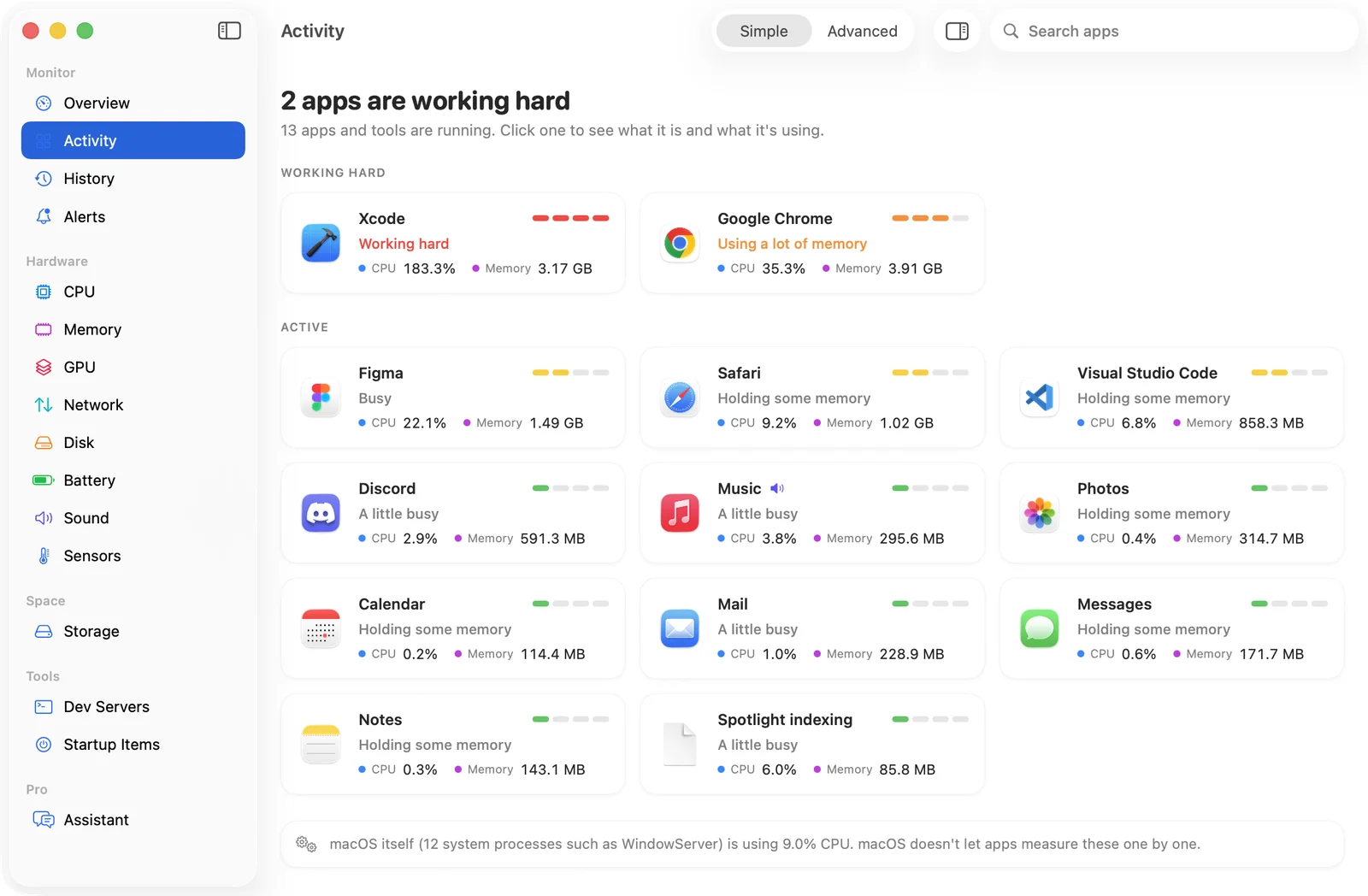
SystemWatch shows which app is stuck before you reach for ⌥⌘⎋. Its Activity view explains each process in plain language, and you get an alert when an app keeps working hard for minutes, when memory runs low or when the disk is almost full.
The website edition adds Tune-Up, which reads the hang and crash reports macOS keeps, notices Spotlight indexing, leaking apps and low disk space, and suggests a fix for each, with an optional AI review. It also adds one-click Force Quit and Pause. It's a one-time $5.99 license for the first 100 copies, then $14.99.