How to Check Memory Usage on Mac
To check memory usage on a Mac, open Activity Monitor and click the Memory tab. The Memory Pressure graph at the bottom is the number that matters: green means your Mac has enough memory, even when Memory Used is close to the total. To open Activity Monitor, press ⌘Space (Command-Space), type "Activity Monitor" and press Return. To see how much RAM is installed, choose Apple menu › About This Mac and look at Memory.
How much memory your Mac has
Choose Apple menu › About This Mac. The Memory line shows the installed RAM, for example 16 GB. The same figure is in System Settings › General › About, and in Activity Monitor as Physical Memory.
On Apple silicon Macs, memory is part of the chip package, so you can't add more later. Apple made 16 GB the starting point for new Macs in late 2024. Some Intel Macs, such as the 27-inch iMac and the Intel Mac Pro, have memory slots where you can add RAM.
Check memory usage in Activity Monitor
- Open Activity Monitor with Spotlight (⌘Space) or from Applications › Utilities.
- Click the Memory tab.
- Click the Memory column heading so the processes using the most memory are at the top.
Browsers split themselves into many processes, often one per tab, so add them up. Safari tabs appear as Safari Web Content, and Chrome tabs as Google Chrome Helper (Renderer). Chrome's own Window › Task Manager shows which tab or extension uses the most.
What the numbers at the bottom mean
| Label | What it means |
|---|---|
| Physical Memory | The RAM installed in your Mac. |
| Memory Used | Memory in use by apps and macOS. It's made up of the three figures next to it. |
| App Memory | Memory your apps and their processes hold. |
| Wired Memory | Memory macOS needs that can't be compressed or moved to disk. |
| Compressed | Memory macOS has compressed because it hasn't been used recently. |
| Cached Files | Recently used files kept in spare memory so they open faster. macOS gives this memory to apps as soon as they need it. |
| Swap Used | Data macOS has moved out of memory and onto the startup disk. |
What memory pressure colors mean
Memory pressure is how hard macOS has to work to give your apps the memory they ask for. It's a better guide than any single number above.
- Green: there's enough memory. This is normal, even when Memory Used looks almost full.
- Yellow: memory is getting tight, and macOS is compressing data to make room. Things still work, but if it stays yellow during your usual work, check which apps hold the most.
- Red: the Mac needs more memory than it has, and it's swapping to the startup disk. Expect slowdowns, tabs that reload and the spinning wheel.
Compressed memory and swap
When apps need more memory, macOS works through three steps:
- It drops cached files. They're copies of data on disk, so nothing is lost.
- It compresses memory that hasn't been used recently. Compressed data stays in RAM but takes much less room, and decompressing it is quick.
- It moves data to swap files on the startup disk. This is the slow step. Even a fast SSD is far slower than RAM, so constant swapping makes the whole Mac feel slow.
A few hundred megabytes or a couple of gigabytes of Swap Used with green pressure is normal. macOS leaves old data in swap until something needs it, so the number can stay up after the busy moment has passed. To check swap from Terminal:
sysctl vm.swapusageIt prints the total, used and free swap space.
What's normal
- Memory Used close to Physical Memory. macOS puts spare memory to work instead of leaving it empty.
- Large Cached Files. That's memory doing useful work, and it's handed back the moment an app needs it.
- Some swap with green pressure. Nothing to fix.
- One app using several gigabytes. Normal for browsers with many tabs, video and photo editors, Xcode, games and virtual machines.
When to worry
- Memory pressure is yellow or red most of the time during your usual work.
- Swap Used keeps growing over the day, into many gigabytes.
- One app's memory climbs for hours and never comes back down. That's usually a memory leak, and restarting the app fixes it until it climbs again.
- macOS shows "Your system has run out of application memory" and asks you to quit apps you aren't using.
How to free up memory on a Mac
- Quit apps you aren't using. Closing an app's last window often leaves it running. Press ⌘Q (Command-Q) to quit it.
- Close browser tabs. Each tab can hold hundreds of megabytes. Turn off extensions you don't use, too.
- Restart apps that leak. If an app's memory keeps growing, quit it and open it again.
- Restart the Mac. Choose Apple menu › Restart. It clears swap and resets everything at once.
- Trim what starts at login. Apps and background helpers that open at login hold memory all day. See how to stop apps opening at startup.
- Keep disk space free. Swap needs room on the startup disk. A nearly full disk makes memory problems worse.
If memory pressure is red with only your usual apps open, your Mac doesn't have enough memory for that work. Plan for more RAM in your next Mac, or spread heavy jobs out so they don't run at the same time.
Myths about cleaning memory
- "RAM cleaner" apps. They push cached data out of memory so a number looks better. macOS then reads that data back from disk, so apps get slower, not faster.
sudo purge. This Terminal command empties the disk cache, which lowers Cached Files. It doesn't touch memory your apps are using, and the cache fills again as you work.- Free memory is good memory. Unused memory does nothing. Memory pressure, not free memory, tells you whether your Mac needs help.
For other reasons a Mac feels sluggish, see why your Mac is slow.
Watch memory with SystemWatch
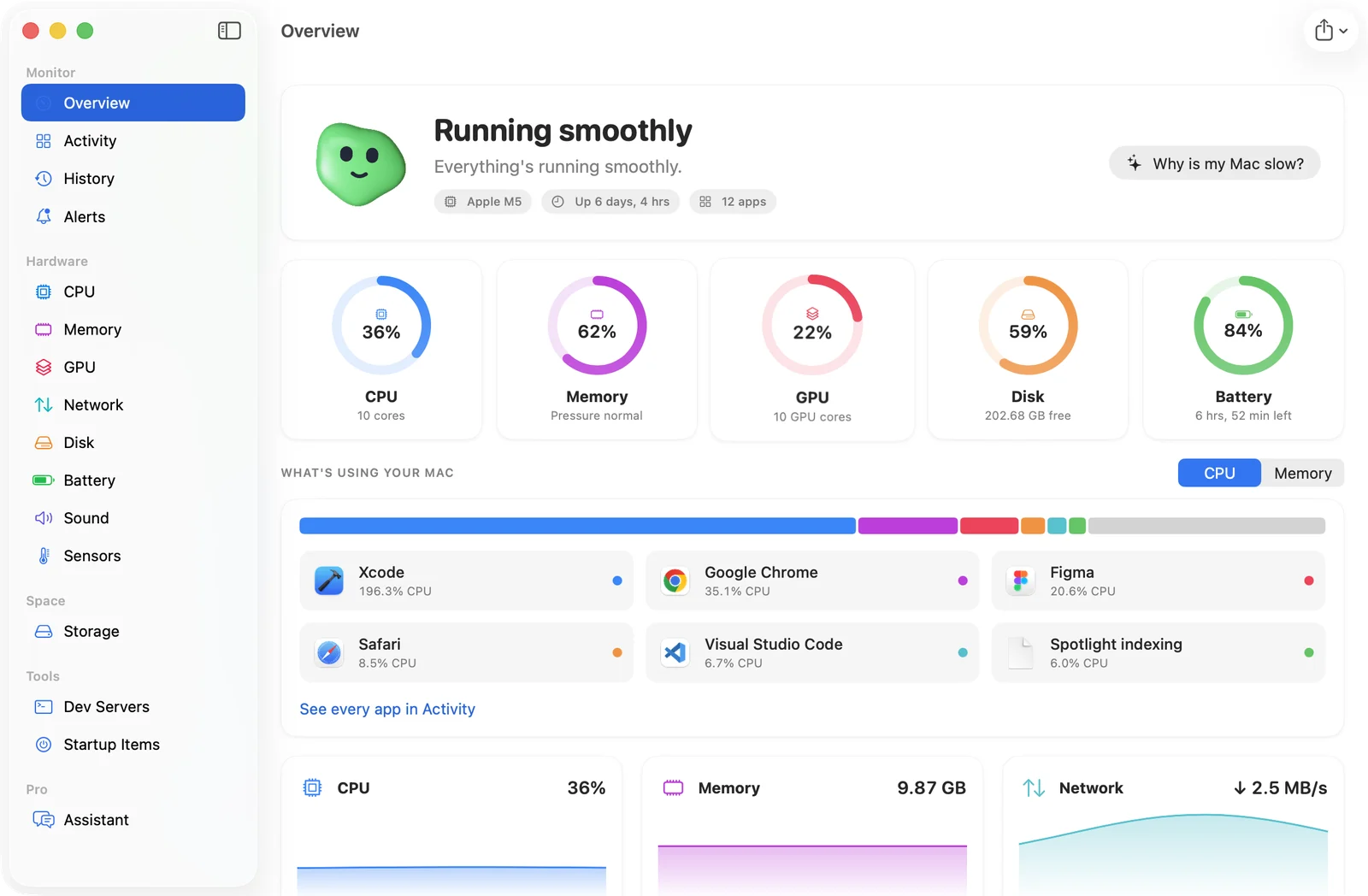
SystemWatch shows memory pressure and swap on its Overview, with 24 hours of history, so you can see when memory ran short. Both editions alert you when memory runs low or one app uses a lot of it.
The website edition adds Tune-Up, which looks for apps whose memory has climbed for hours without coming back down and suggests restarting them, and spots browsers with too many open tabs. It can also pause or quit an app in one click. It's a one-time $5.99 license for the first 100 copies, then $14.99.