macOS processes › Audio and speech
What is coreaudiod on Mac?
coreaudiod is the macOS Core Audio daemon. All sound on your Mac, from speakers and headphones to microphones and audio interfaces, goes through it.
What it does
Apps send audio to coreaudiod, which mixes it, converts it to the right format and sends it to your output device. It also delivers microphone input to apps. Third-party audio drivers and virtual devices plug into it; on recent macOS they run in separate processes named Core Audio Driver, followed by the driver's name.
Why it gets busy
- Several apps playing or recording at once.
- Third-party audio drivers or virtual audio devices, often installed by meeting, streaming or recording apps.
- Bluetooth headphones switching between devices or between music and call modes.
- A web page or app holding audio open even when you hear nothing.
Why is coreaudiod using so much CPU?
coreaudiod is mixing and processing sound for your apps. Third-party audio drivers, many apps playing at once, or Bluetooth headphones switching modes are the usual causes.
Is it safe to quit?
macOS restarts it in a second or two. Sound cuts out briefly, and some apps need to be restarted to get audio back.
How to calm it down
- Quit apps that might be playing or holding audio, including browser tabs with muted media.
- Remove audio drivers you no longer use with their app's uninstaller. They're installed in /Library/Audio/Plug-Ins/HAL.
- If sound is stuck or crackling, restart Core Audio by running
sudo killall coreaudiodin Terminal. It asks for your password, and sound comes back right away. - Open Audio MIDI Setup (in Applications › Utilities) and check your devices for unusual sample rates.
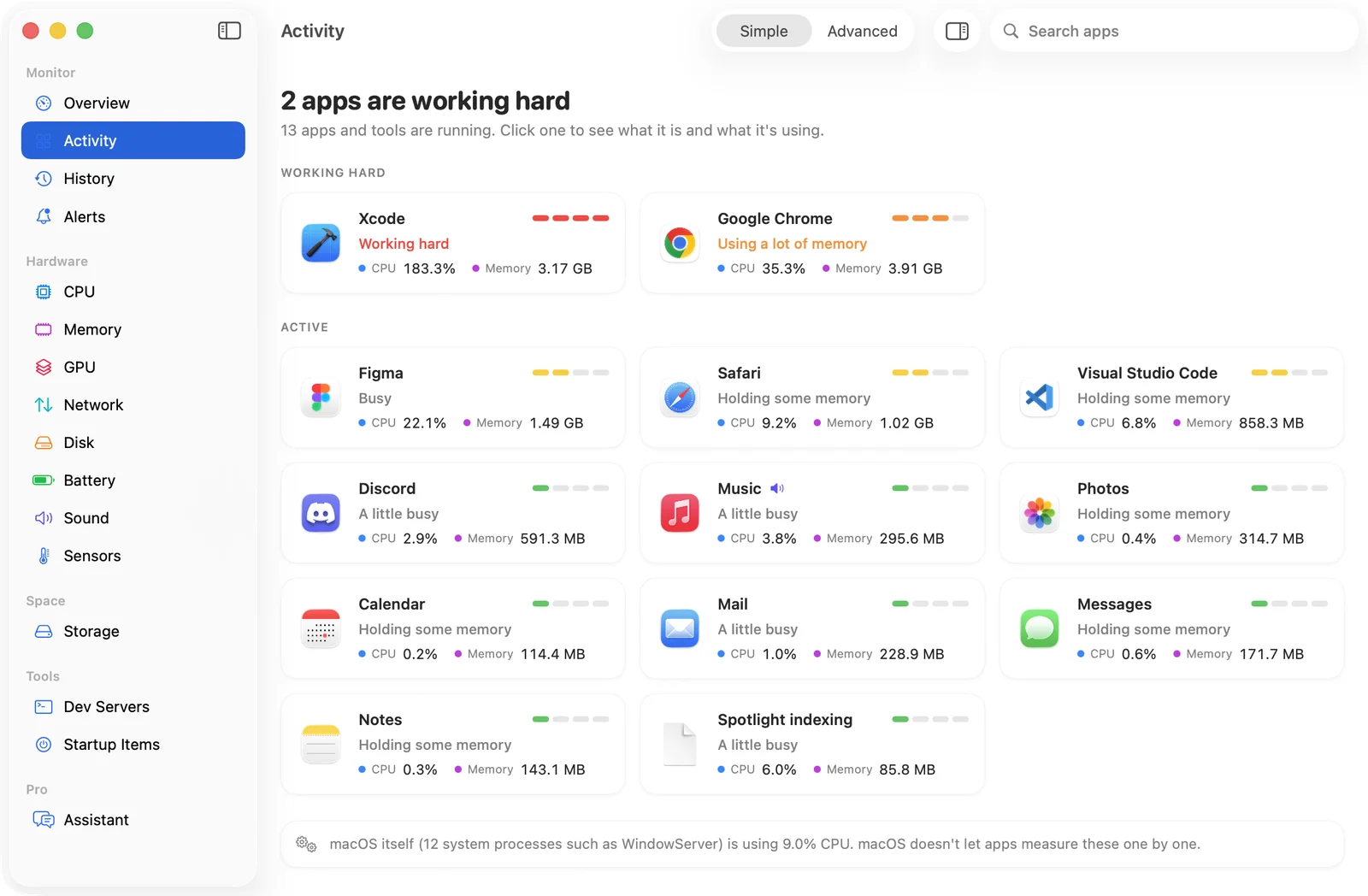
In SystemWatch
SystemWatch labels coreaudiod as Sound, and the website edition can force quit it in one step; macOS starts it again, which often clears stuck audio.