macOS processes › Browsers and web content
What is Google Chrome Helper (Renderer) on Mac?
Google Chrome Helper (Renderer) processes run the web pages and extensions you have open in Chrome. Chrome usually starts one per site or tab, so having many of them is normal.
What it does
Each renderer runs a page's HTML, CSS and JavaScript in a sandbox, separate from the rest of Chrome. Chrome keeps different sites in different processes for security, so the count can be higher than your number of tabs. Apps built on Electron, like Slack, Discord or VS Code, use the same design, with processes named after the app followed by Helper (Renderer).
Why it gets busy
- A heavy tab: a web app, video site, game, or page with many ads.
- Tabs running scripts in the background, like dashboards, chat or email.
- Extensions, which can each run in their own renderer.
- Many open tabs, each holding its own memory.
Why is Google Chrome Helper (Renderer) using so much CPU?
A busy Google Chrome Helper (Renderer) is a tab or extension doing heavy work. Chrome's Task Manager (Window › Task Manager) shows which one, so close it or disable that extension.
Is it safe to quit?
Quitting one crashes only that tab or extension, which shows an error page you can reload.
Real renderer processes live inside /Applications/Google Chrome.app. One running from anywhere else is suspicious.
How to calm it down
- Open Window › Task Manager in Chrome, sort by CPU or memory, and end the tab or extension that's heavy.
- Turn on Memory Saver in Settings › Performance so inactive tabs release memory.
- Remove extensions you don't need at chrome://extensions.
- Reload or close long-running web apps now and then, since some leak memory over time.
In SystemWatch
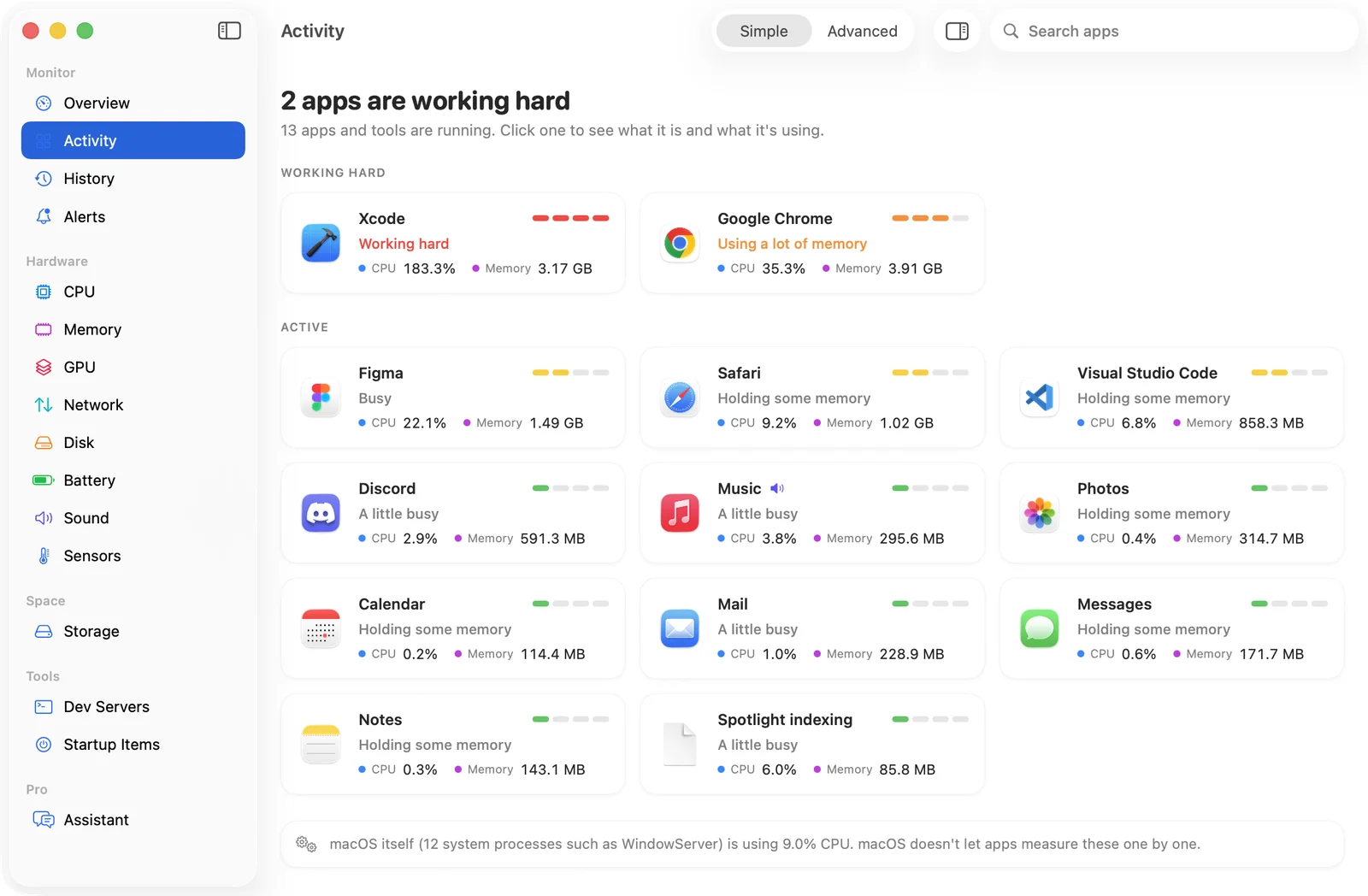
SystemWatch adds every Chrome renderer to Google Chrome's row so you see the browser's real total, and the website edition can quit a single runaway renderer.